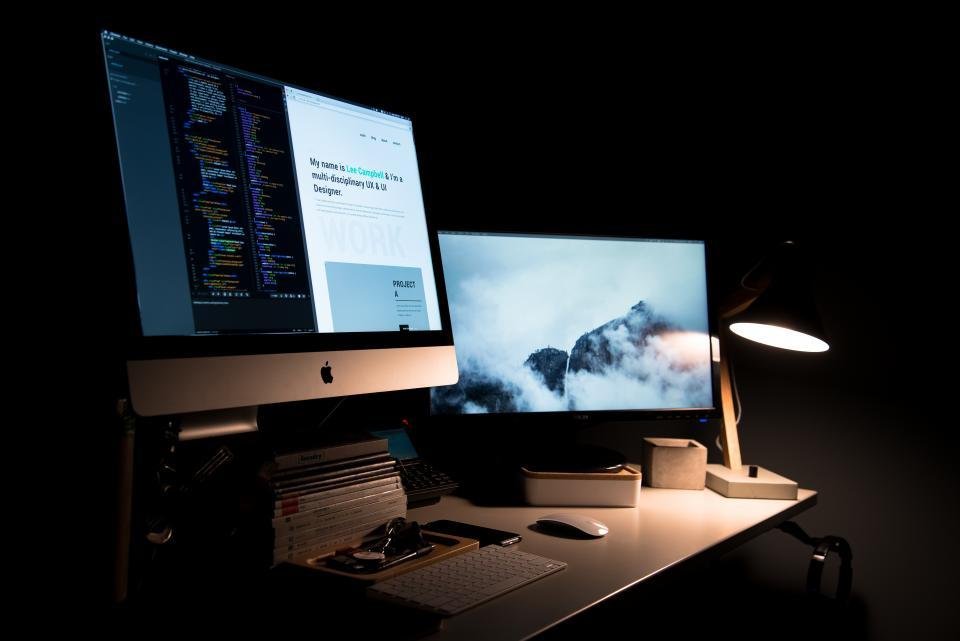
A second monitor is one of the highest-value upgrades a desk-bound worker can make — and one of the easiest to set up badly. Get it wrong and you spend the day cranking your neck sideways at a screen that's too low. Get it right and switching between tasks stops costing you anything at all.
Is a dual monitor setup worth it?
For most people who keep several things open at once — a document and its research, a spreadsheet and an email, a call on one screen and notes on the other — yes. The gain isn't magic productivity; it's the removal of constant window-switching, which is quietly exhausting. If you mostly work in one full-screen app at a time, a single large monitor or an ultrawide may suit you better than two separate panels and the seam between them.
First, pick your primary screen
This one decision drives the whole layout. Be honest about how you actually work:
- One main screen, one helper (most people). Put your primary monitor squarely in front of you, centred on your body, and set the second off to one side for reference, chat or email.
- Both used equally (traders, editors, developers). Place the two monitors symmetrically with the seam directly in front of your nose, so neither screen forces a permanent turn.
The most common mistake is putting two screens dead-centre when one is really the main one — that leaves you angled slightly off-axis all day.
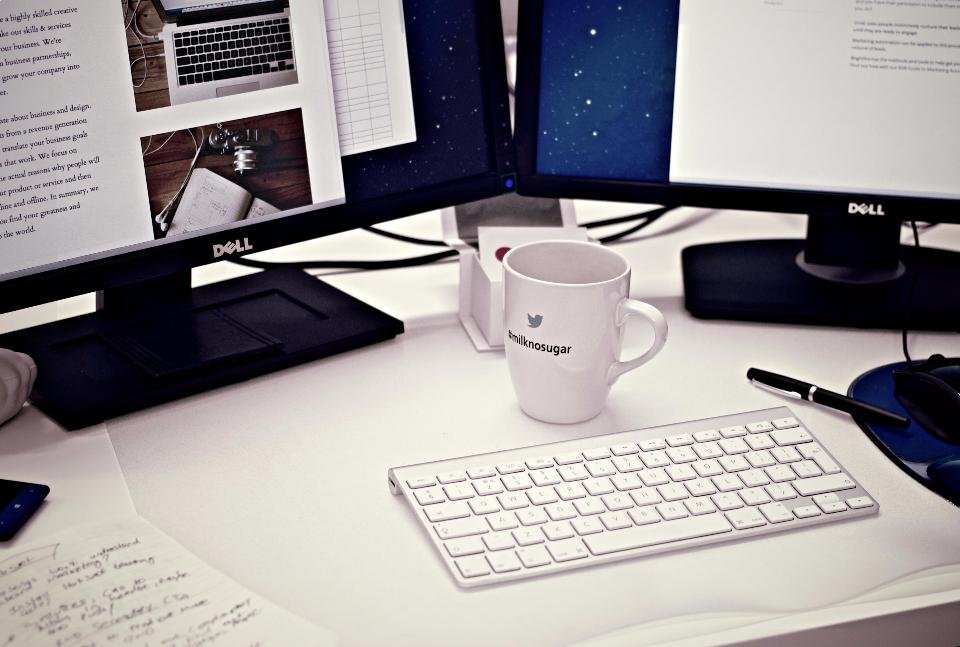
Position and angle
Whichever layout you chose, curve the screens toward you. Angle each monitor slightly inward so together they form a shallow arc centred on your chair — that way both are roughly the same distance from your eyes and you turn your head rather than straining your eyes to the edges. Keep them about an arm's length away, just like a single screen.
Height and matching
Height is where necks get hurt. Set both monitors so the top of each screen is at or just below eye level, and — this is the part people miss — align the tops of the two monitors with each other. A second screen sitting lower than the first makes you tilt your head every time you glance across.
- Match size and resolution if you can. Two identical monitors avoid a jarring jump in scale and sharpness as your eyes move between them.
- Using a laptop as the second screen? Raise it on a stand so its top lines up with your main monitor, and add an external keyboard — see our ergonomic setup guide for the numbers.
Sit back, close your eyes, then open them looking straight ahead. Your primary screen (or the seam) should be right there — no turn needed. If you have to hunt for it, re-centre before anything else.
Monitor arms and cables
A pair of monitor arms is the upgrade that makes a dual setup feel finished. They free the desk surface beneath the screens, let you fine-tune height and angle precisely, and push the monitors back for more depth. They also make cable routing far tidier, since the leads run down the arm and off the back edge — route them once with our cable-management method and the whole setup reads clean.
Two screens, matched and aligned, curved gently around your chair with their tops at eye level: that's the entire recipe. Do that and a dual monitor setup pays you back every single day in less switching, less squinting, and a neck that doesn't file a complaint at five o'clock.
Frequently asked questions
How should I position two monitors?
If you use both screens equally, place them symmetrically with the seam directly in front of you and angle each slightly inward in a shallow curve. If one is your main screen, put that one squarely in front of you and set the second to the side as a secondary.
Should both monitors be the same size and height?
Ideally yes. Matching size and resolution avoids a jarring jump between screens, and aligning the tops of both monitors at eye level keeps your neck neutral as you look from one to the other.
Is a dual monitor setup worth it?
For most people who juggle several windows — research and writing, code and preview, a call plus notes — yes; it removes constant window-switching. If you mostly do one full-screen task at a time, a single large or ultrawide monitor may serve you better.